The original intention of my blog was to make it easier for new GIMP users, who may or may not have used P h o t o S h o p, to use the GIMP. I've lost that main track a bit so here is my attempt to make it up to those who may (or may not) feel forgotten.
FILTERS! Now everybody cheer! F-I-L-ters... okay, I never did enjoy cheer-leading, but what I do like is teaching. Now, if you want those PS filters that you are so fond of, check out: http://lifehacker.com/5051650/use-photoshop-filters-in-gimp
I have yet to check it out myself (I know, I know), but I will and when I do, I will update this entry.
1.17.2009

1.11.2009
I swear I'll create a decent posting schedule. It'll happen... eventually. Anyhow, Art expressed that he'd like to see a full set of keyboard commands SO here they are. :) Better late than never, right? :D I am putting ALL keyboard commands in this post, but will explain a few and put in red the ones that I feel are worth memorizing. It might seem like a daunting task, but if you use GIMP enough, these commands will become as second nature as CTRL + Z.
I'll try to organize this somewhat...
Toolbox:
If you like this, comment please!!!
I'll try to organize this somewhat...
Toolbox:
- Rectangle Select Tool - R
- Ellipse Select Tool - E
- Free Select Tool - F
- Fuzzy Select Tool - U
- Select by Color Tool - Shift + O
- Scissors Select Tool - I
- Foreground Select Tool - n/a
- Path Tool - B
- Color Picker Tool - O
- Zoom Tool - Z
- Measure Tool - Shift + M
- Move Tool - M
- Alignment Tool - Q
- Crop Tool - Shift + C
- Rotate Tool - Shift + R
- Scale Tool - Shift + T
- Shear Tool - Shift + S
- Perspective Tool - Shift + P
- Flip Tool - Shift + F
- Text Tool - T
- Bucket Fill Tool - Shift + B
- Blend Tool (Gradient Tool) - L
- Pencil Tool - N
- Paintbrush Tool - P
- Eraser Tool - Shift + E
- Airbrush Tool - A
- Ink Tool - K
- Clone Tool - C [The cloning and healing tools are great when you are doing touch-ups.]
- Healing Tool - H
- Perspective Clone Tool - n/a
- Blur/Sharpen Tool - Shift + U
- Smudge Tool - S
- Dodge/ Burn Tool - Shift + D
- New File - CTRL + N
- Open - CTRL + O
- Save - CTRL + S
- Save As - CTRL + SHIFT + S
- Undo - CTRL + Z
- Redo - CTRL + Y
- Cut - CTRL + X
- Copy - CTRL + C
- Paste - CTRL + V
- Select All (in that layer) - CTRL + A
- Select None - CTRL + Shift + A
- Select Invert - CTRL + I
- New Layer - CTRL + Shift + N
- Duplicate Layer - CTRL + SHIFT + D
If you like this, comment please!!!
8.09.2008
Simple Shortcuts
Because I tend to reference a command and not explain what it does, I thought it best to create a blog about some shortcuts that, once you master, will make GIMPing (yes I did just turn GIMP into a verb) much easier. :) Now, praise me for my kindness! :D Or don't, whatever man.
I should make t-shirts.
I should make t-shirts.
- New Layer: CTRL+SHIFT+N
- Select entire canvas: CTRL+A
- Zoom IN: SHIFT + +
- Zoom OUT: -
7.24.2008
What is Web 2.0?
Web 2.0 is an amazing design concept (apparently because everyone's using it). It's a rather respectable design concept with its sleek buttons (that are all incredibly shiny) and its stripes... oh those stripes. It calls for simplicity with a modern twist, although, for some reason simplicity is always regarded as modern. I've done enough ranting... Now, let me teach you somethin' or another. :D

Should I create a banner... a background?... perhaps... perhaps A BUTTON. A simple button that is rather revolutionary. Why? Because, my friends, it is shiny.
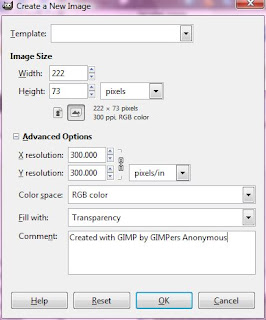
1) File -> New. Once you arrive at the dialog box, change the 'Background Fill' to 'Transparent' and set the size to 222 x 73, as shown:
2) Hit CTRL+A to select the entire box.
3) Then, click Select -> Rounded Rectangle. Its default setting is 50% (that is what I used for the button above). You can increase it or decrease it if you like, but I suggest that you leave it as is.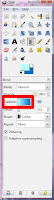
4) Now you want to add the gradient. I chose b5ffff as the lighter color (double click on a color to edit) and 0071c6 as the darker color. Select the gradient tool and choose the one that matches your color choice by clicking on the box after gradient (Click to enlarge):
5) With the gradient tool selected, click the top of the box (or near it) and drag down towards the bottom.
6)The next step is to create a bevel effect, which I did not know how to do, so I Googled it and found the following page: http://www.novell.com/coolsolutions/feature/17391.html. Then return here once you've created the bevel effect. I was able to follow the tutorial relatively well, which is the reason why I am posting the link.
7) Now, you want to make it look shiny. :D Select the rectangle tool, which is the first tool in the main box and looks like this: You want to select a small space as shown here:


Should I create a banner... a background?... perhaps... perhaps A BUTTON. A simple button that is rather revolutionary. Why? Because, my friends, it is shiny.
1) File -> New. Once you arrive at the dialog box, change the 'Background Fill' to 'Transparent' and set the size to 222 x 73, as shown:

2) Hit CTRL+A to select the entire box.
3) Then, click Select -> Rounded Rectangle. Its default setting is 50% (that is what I used for the button above). You can increase it or decrease it if you like, but I suggest that you leave it as is.

4) Now you want to add the gradient. I chose b5ffff as the lighter color (double click on a color to edit) and 0071c6 as the darker color. Select the gradient tool and choose the one that matches your color choice by clicking on the box after gradient (Click to enlarge):
5) With the gradient tool selected, click the top of the box (or near it) and drag down towards the bottom.
6)The next step is to create a bevel effect, which I did not know how to do, so I Googled it and found the following page: http://www.novell.com/coolsolutions/feature/17391.html. Then return here once you've created the bevel effect. I was able to follow the tutorial relatively well, which is the reason why I am posting the link.
7) Now, you want to make it look shiny. :D Select the rectangle tool, which is the first tool in the main box and looks like this:
You want to select a small space as shown here:
8) Click Select ->Rounded Rectangle.
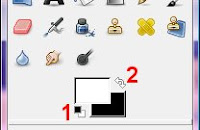
9) Select the paint bucket tool and change your main color to white. You can do so quickly by clicking the small black and white rectangle (1) then click the arrows (2). (Shown to the right)
10) Click on the window with your button. Hit CTRL+ALT+N and hit 'Enter'.
11) Now click (with the paint bucket tool selected) inside the selected area. Then change the transparency to 67%. Adjust the transparency to what you prefer.
Now you can add text or use it however you'd life. :) Enjoy your Web 2.0 button.
9) Select the paint bucket tool and change your main color to white. You can do so quickly by clicking the small black and white rectangle (1) then click the arrows (2). (Shown to the right)
10) Click on the window with your button. Hit CTRL+ALT+N and hit 'Enter'.
11) Now click (with the paint bucket tool selected) inside the selected area. Then change the transparency to 67%. Adjust the transparency to what you prefer.
Now you can add text or use it however you'd life. :) Enjoy your Web 2.0 button.
5.15.2008
An Apology
I'm really sorry that I haven't posted any tutorials in a while :\
I have quite a bit of work to accomplish before my school year is over!
Once I can start posting again, sometimes within the next two weeks, I plan on posting tutorials on the following topics:
Please come back soon to check out the new tutorials!
I have quite a bit of work to accomplish before my school year is over!
Once I can start posting again, sometimes within the next two weeks, I plan on posting tutorials on the following topics:
- Easy Web 2.0 stripes
- Simple Web 2.0 backgrounds
- More how-tos with filters and tools
- And maybe I'll create some myspace tutorials... *shivers*
- Nifty things to spruce up your images
- AND MUCH MUCH MORE!
Please come back soon to check out the new tutorials!
5.04.2008
How to make a Blogger Banner
I suggest that you find inspiration somewhere. I found my inspiration at www.istockphoto.com. It helps to get your mind going by just looking at abstract images. Once you see something that inspires you, create your own original work or, if you want, purchase the image that inspires you.
The banner size to use is 713x142. I did not originally realize that and so my banner hangs off the side a bit. :-\
The Beginning Steps:
From this point, it's a matter of what you want to do. What type of background do you want? Do you want text in your banner? If so, then:
*Click on the text tool, which looks like the letter A
*Choose font, size, etc...
If you want your text to have a pattern or something besides a plain color, check out: http://gimpersanonymous.blogspot.com/200...
A tutorial on layers: http://gimpersanonymous.blogspot.com/200...
Additional info:
To add it to your blogger blog:
The banner size to use is 713x142. I did not originally realize that and so my banner hangs off the side a bit. :-\
The Beginning Steps:
- Open GIMP
- File->NEW
- Change WIDTH to 713 and HEIGHT to 142
- Click on ADVANCED OPTIONS and change FILL WITH to 'transparency'

From this point, it's a matter of what you want to do. What type of background do you want? Do you want text in your banner? If so, then:
*Click on the text tool, which looks like the letter A
*Choose font, size, etc...
If you want your text to have a pattern or something besides a plain color, check out: http://gimpersanonymous.blogspot.com/200...
A tutorial on layers: http://gimpersanonymous.blogspot.com/200...
Additional info:
- First, save the image as a .xcf file, which is GIMP's file format. It will preserve the layers and make it easier to work on in the future. :)
- Save the image as a .png file [so you can preserve any transparency and it will be a higher quality.
To add it to your blogger blog:

- From your Dashboard, click 'Layout' [shown to the right]
- To edit your header, go to the box under NavBar and click 'edit' [shown below]

- To insert the header you created and saved as a .png, select the file on your computer by clicking 'browse' or select an image from an account, such as photobucket. {I personally suggest that you take the image right from your computer}

4.30.2008
The Path Tool!
 How to? Why? Huh? OH YEAH!
This is an introduction to the ever-useful path tool. :)
First off, an image to better help me explain:
1) Design [aka creating the path]
Just click along the part you want selected
2) Edit [aka editing your path]
You can use this to smooth out your path and make it exactly what you want it to be :D
3) Selection from Path [turns your path into a selection that you can make use of]
Do you want to move it into a different image? Now you can! Cut [ctrl+x or Edit->Cut] and treat the selection as any other item on the clipboard. Paste [ctrl+v or Edit->Paste] it where you want it! :)
4) Stroke Path is simply taking your path and turning it into a visible shape or line.
The thickness can be set by you in the dialog box that follows:

What you need to worry about is mainly the stroke line width [highlighted] and color [the foreground (FG) color, which is the black box in front of the white one in the first image... or main color].
I hope this is a helpful tutorial! If you have any questions, just comment away!
Subscribe to:
Posts (Atom)